AI Smart Alerts 101
Catch whale movements, token transfers, and Smart Money activity before the market reacts. AI-powered alerts to understand what’s happening onchain — never miss another alpha move.
Written By Nansen Team
Last updated 27 days ago
Create Smart Alerts with AI
💡 As of Jul 29, 2025, we’ve simplified how you can create Smart Alerts, making it that much easier for users to track the onchain movements that matter.
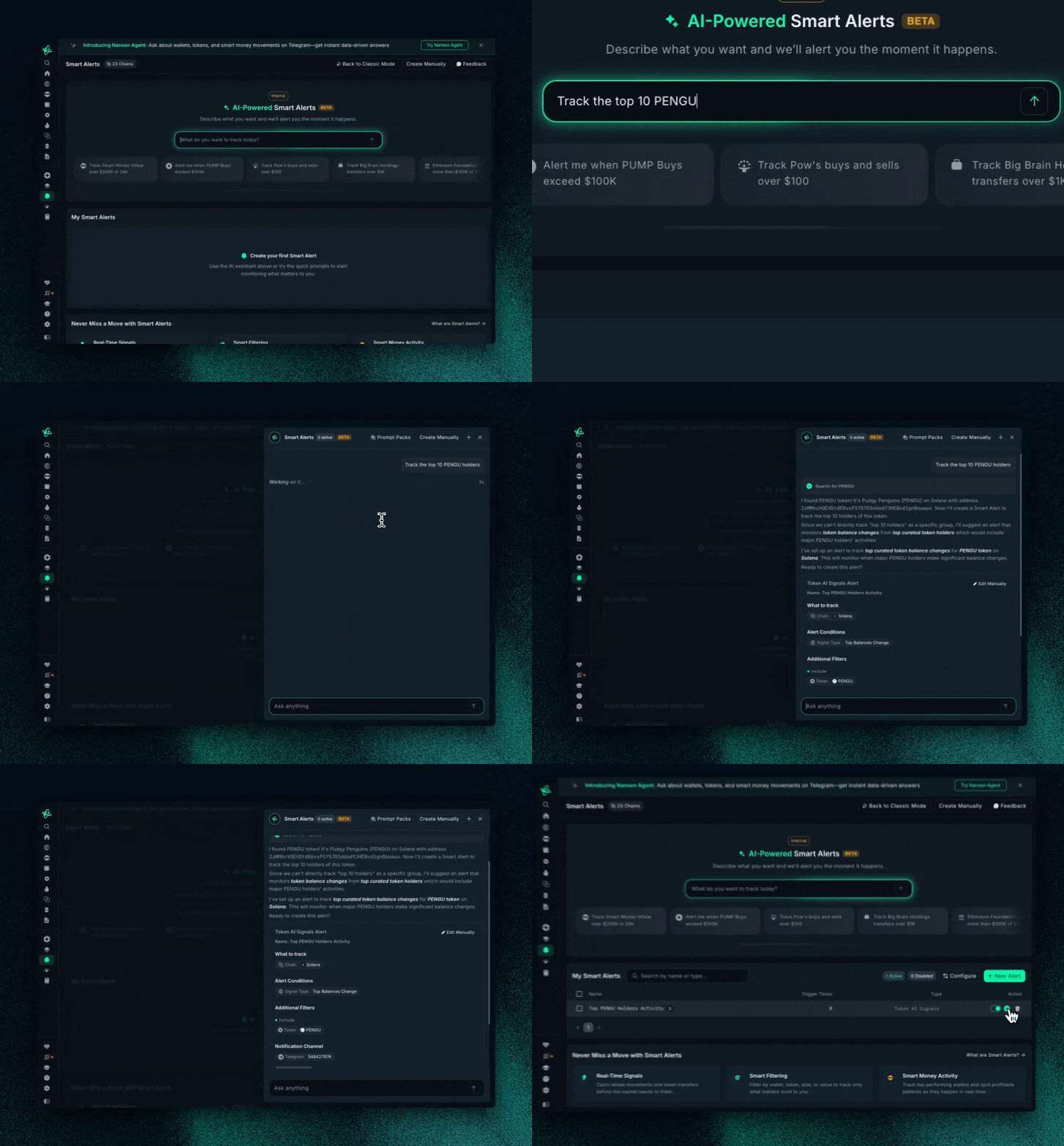
Instead of having to manually toggle your own Smart Alerts, you can now automatically set up alerts faster, smarter, and better. Simply just:
Tell the Agent what you want to track OR choose a preset prompt
Wait for the AI to create the alert
Click ‘Create Alert’ once completed
Create Smart Alerts Manually
Smart Alert Types
There are two types of Smart Alerts in Nansen:
Token Transfers: Real-time alerts that trigger when an address being tracked moves a token
Smart Money Token Flow: Aggregated time based alerts that trigger when smart money flows hit a custom threshold
Perps Position: Real-time alerts that trigger when an address opens, closes or modifies a perp position on Hyperliquid
Both alerts have various types of functionality, if you want specifics on what each alert offers—ask the agent!
How to Setup Telegram Notifications
⚠️ Download and install Telegram Desktop: https://desktop.telegram.org/ or use the web version https://web.telegram.org/
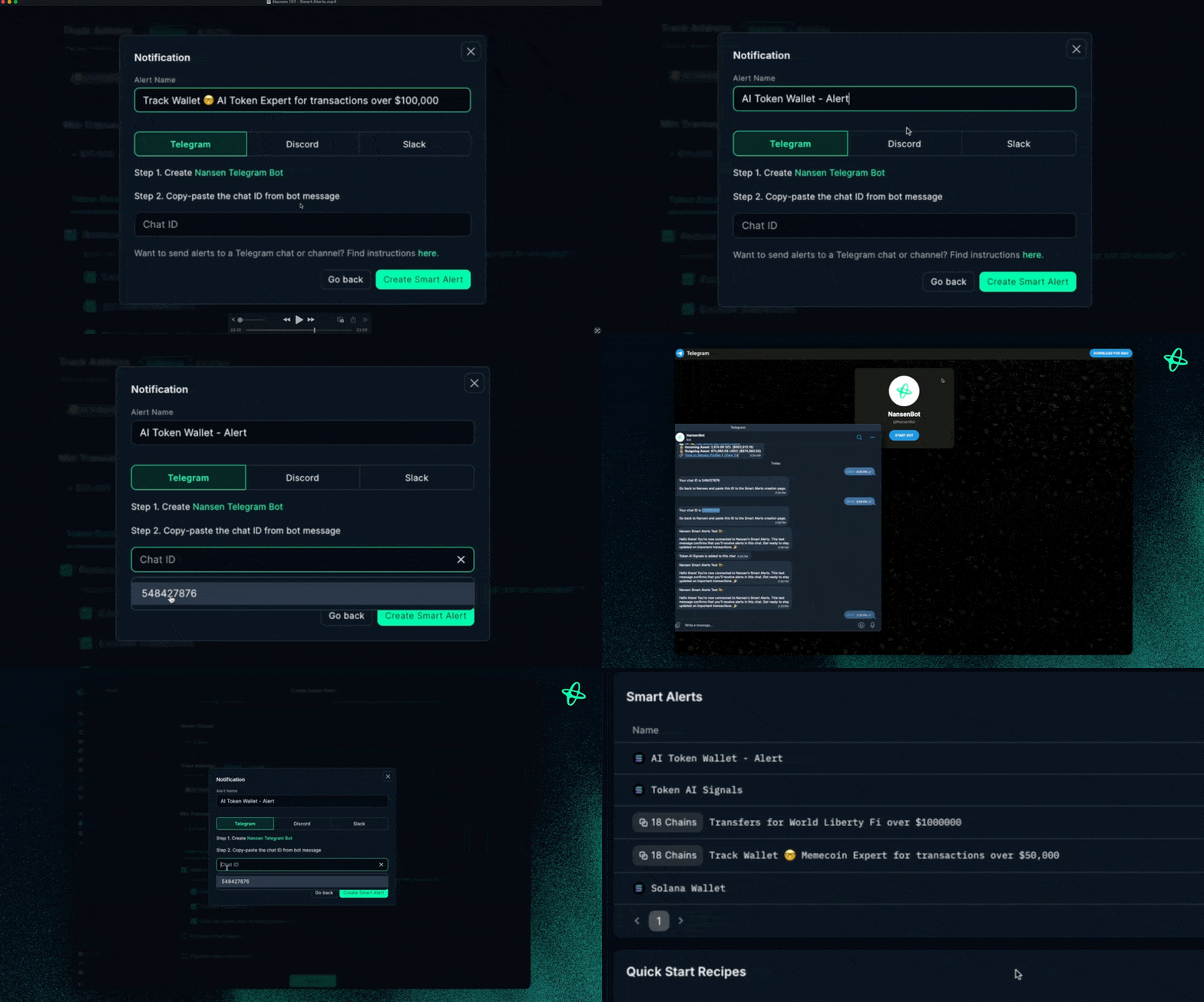
Select your preferred alert delivery method:
Telegram DM: Private alerts
Discord: Server-based notifications
Slack: Workspace notifications
Click the Nansen Telegram Bot link
Select 'Start' and copy your chat ID
Paste the chat ID in Nansen
How to Setup Alerts on Discord
⚠️ Before you start:
Download and install Discord Desktop if you haven't done it yet https://discord.com/download.
You must be an Admin of a Discord Server. If you don't have one create a new server by following the instructions here.
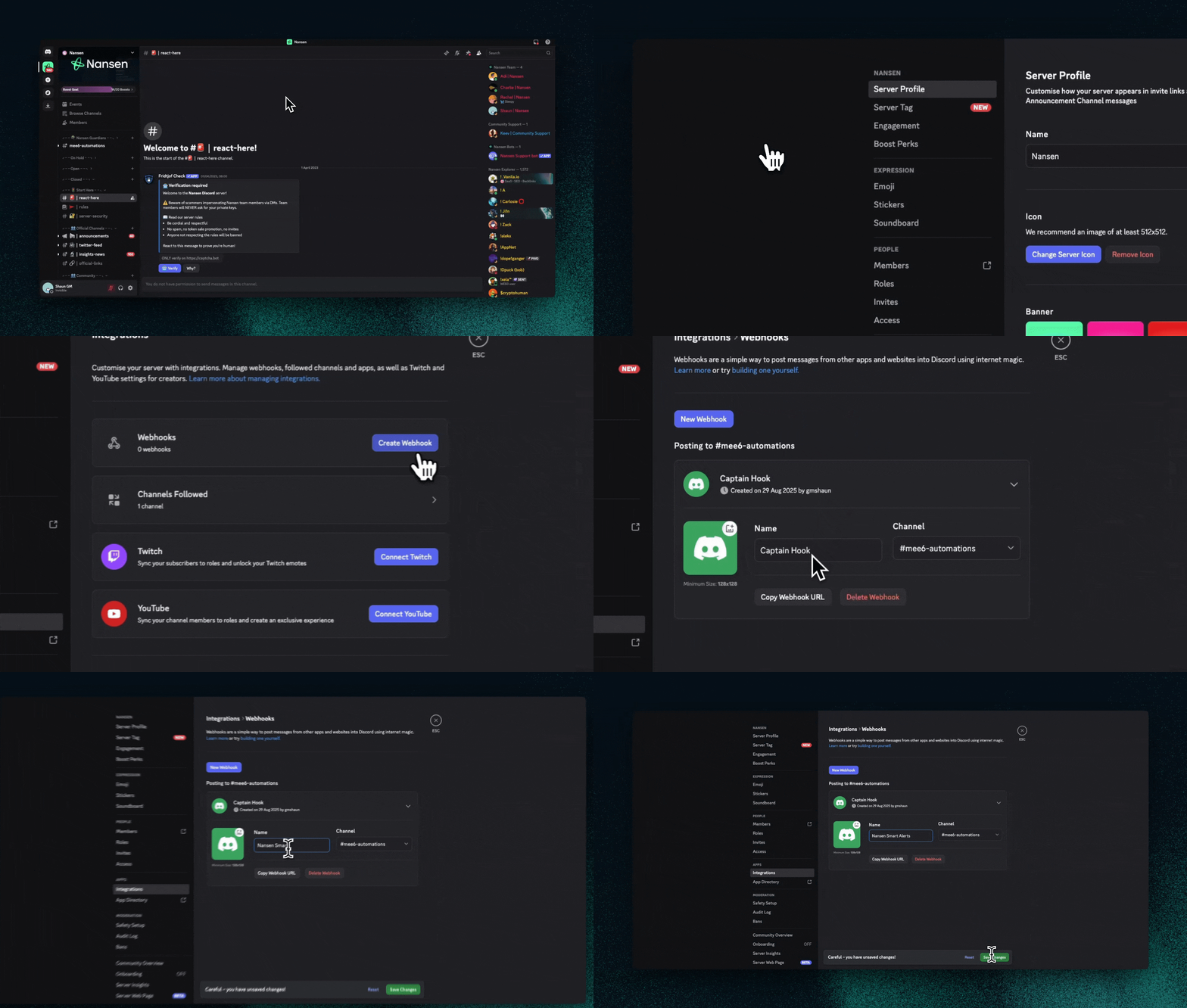
Right click on the server on the left panel, select Server Settings > Integrations > View Webhooks
Add a webhook Name, select to which Channel the alerts should be sent, Save the webhook and click the Copy Webhook URL button
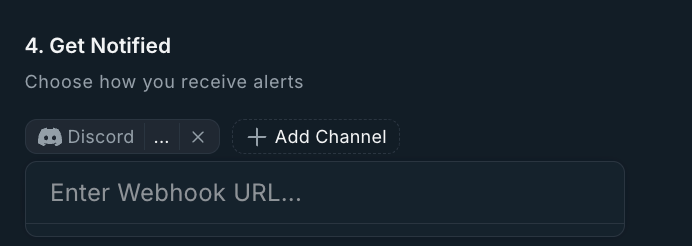
Paste copied URL it in the Discord Webhook URL field in the Nansen smart alerts form
How to Setup Alerts on Slack
⚠️ Before you start:
Download and install Slack Desktop if you haven't done it yet https://slack.com/downloads
You must be an administrator of the Slack Workspace. If you don't have one create a new workspace by following the instructions here.
See official docs on sending messages using incoming webhooks for further information
Step 1: Create a Slack App
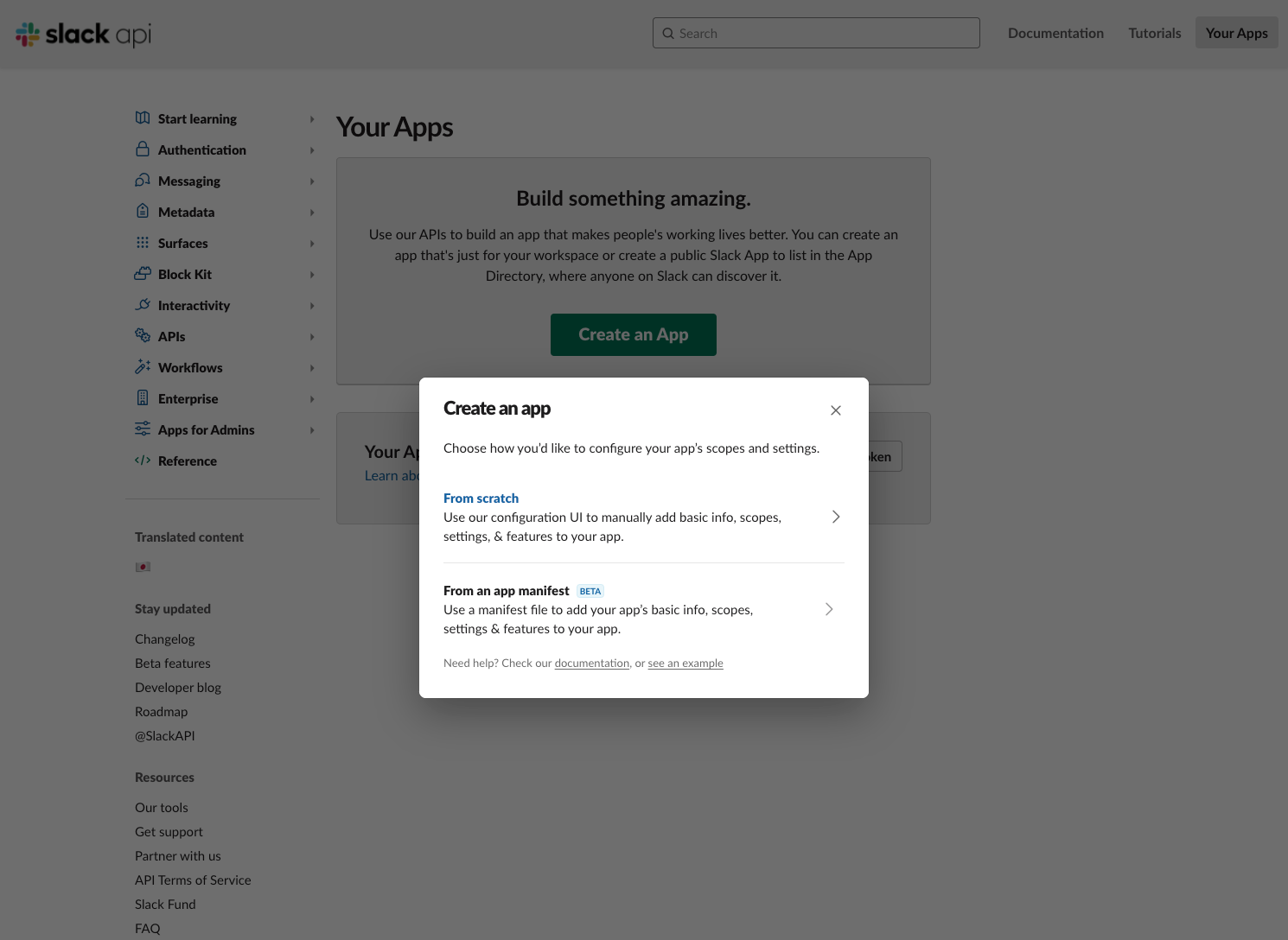
Click on Create an App
Decide whether you want to start from scratch or use a manifest file to add your app’s basic info, scopes, settings & features - if you don’t know what this is, use From scratch.
Name app & choose workspace
Click Create App
Step 2: Enable & create incoming webhook
After creating, you'll be redirected to the settings page for your new app (if you are using an existing app, just load its settings via your app's management dashboard).
Select the Incoming Webhooks feature, and click the Activate Incoming Webhooks toggle to switch it on.
Now that Incoming Webhooks are enabled, the settings page should refresh and some extra options will appear. One of those options will be a really helpful button marked Add New Webhook to Workspace, and you should click it.
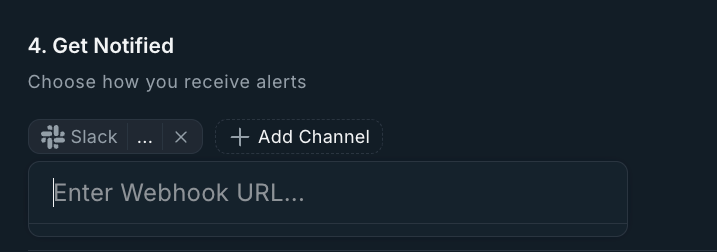
Go ahead and pick a channel that the app will post to, and then click to Authorize your app. You'll be sent back to your app settings, and you should now see a new entry under the Webhook URLs for Your Workspace section, with a Webhook URL that'll look something like this:
https://hooks.slack.com/services/T00000000/B00000000/XXXXXXXXXXXXXXXXXXXXXXXXCopy this webhook URL
Then paste copied webhook URL in the Slack Webhook URL field in the Nansen smart alerts form on Nansen & enable the alert