Perps Trading (Hyperliquid) 101
Trade where you research. Perps trading on Hyperliquid, directly on Nansen.
Written By Nansen Team
Last updated 2 months ago
1️⃣ Setting Up a Perps Trade
A perpetual futures trade, or perp, lets you speculate on a token’s price going up or down using leverage, without a fixed expiry date. Going long means you profit if the price rises; going short means you profit if the price falls.
Perps can be capital efficient because leverage lets you control a larger position with a smaller amount of margin. However, leverage also amplifies losses and increases liquidation risk, especially at higher leverage levels.
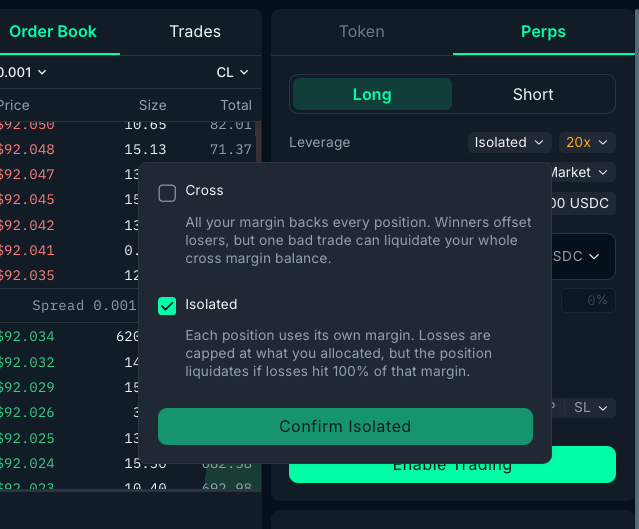
Margin
Margin is the part of your balance you put up as collateral to open and maintain a leveraged trade.
Isolated margin: Uses only the amount you allocate to that specific trade as collateral. Losses are generally limited to that allocated amount, making risk easier to contain.
Cross margin: Uses your available perps balance as shared collateral across open trades. One losing position can draw on the rest of your perps account to avoid liquidation, so more of your balance may be at risk.
Leverage
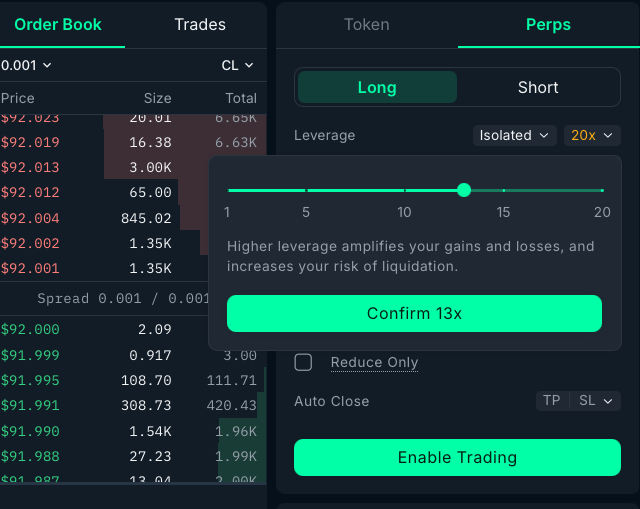
Leverage is a multiplier that increases total position size, which amplifies gains and losses.
For example, placing $100 of margin in a trade with 10x leverage results in a total position size of $1,000. A 1% move in the asset price would result in a 10% gain or loss on the margin placed, not including fees.
Leverage is capital efficient, but the downside is that the higher the leverage, the closer the liquidation price is to your entry price.
• Adjust your leverage using the leverage slider
• Higher leverage = larger potential gains and larger potential losses
• Higher leverage = liquidation price closer to entry price
Liquidation
Liquidation happens when the margin on an open position is no longer enough to keep the trade open. When this happens, the position is automatically closed, and the margin placed on the trade is lost.
In cross margin mode, liquidation can put more of your perps balance at risk, because open positions may draw from your shared account collateral.
Funding
Perps do not expire, so funding payments help keep the perp price close to the spot price. This is a fee exchanged between longs and shorts.
• Perp price > spot price = Longs pay shorts
• Perp price < spot price = Shorts pay longs
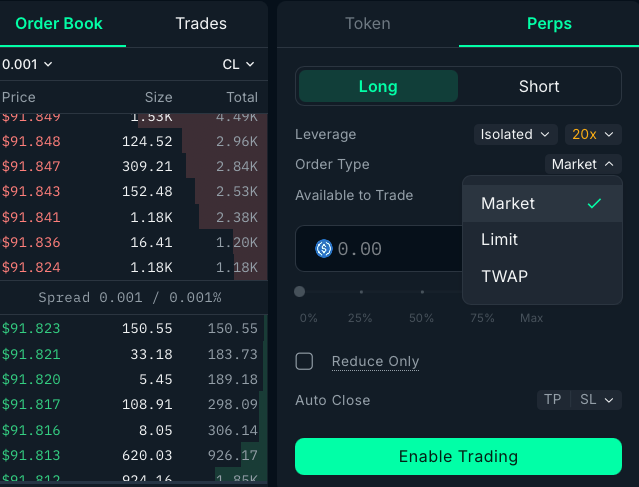
Order Type
Market order: An order that fills right away at the best available price in the market.
Limit order: An order that only fills at the specific price you choose or better.
TWAP order: An order that splits a large trade into smaller chunks over a set time, aiming to get an average price and reduce market impact.
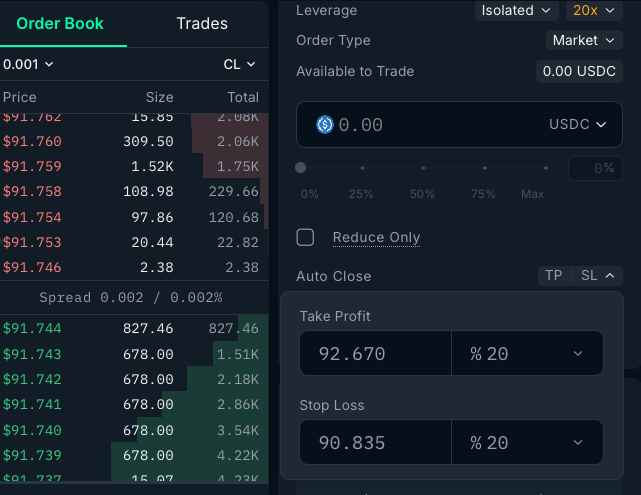
Auto Close
Take Profit (TP): An automated close that sells or buys back your position once you’ve reached a chosen profit level.
Stop Loss (SL): An automated close that exits your position if price moves against you to a chosen loss level.
2️⃣ Depositing Funds
To get started, make sure to deposit funds to your Nansen Wallet.
1. Click Deposit Funds at the top right corner
2. You can deposit to your wallet in different ways
3. Cross-chain swaps are supported - you're not limited to one network
Bridge from external wallet
Send funds from an external wallet, from your browser EVM or Solana wallet.
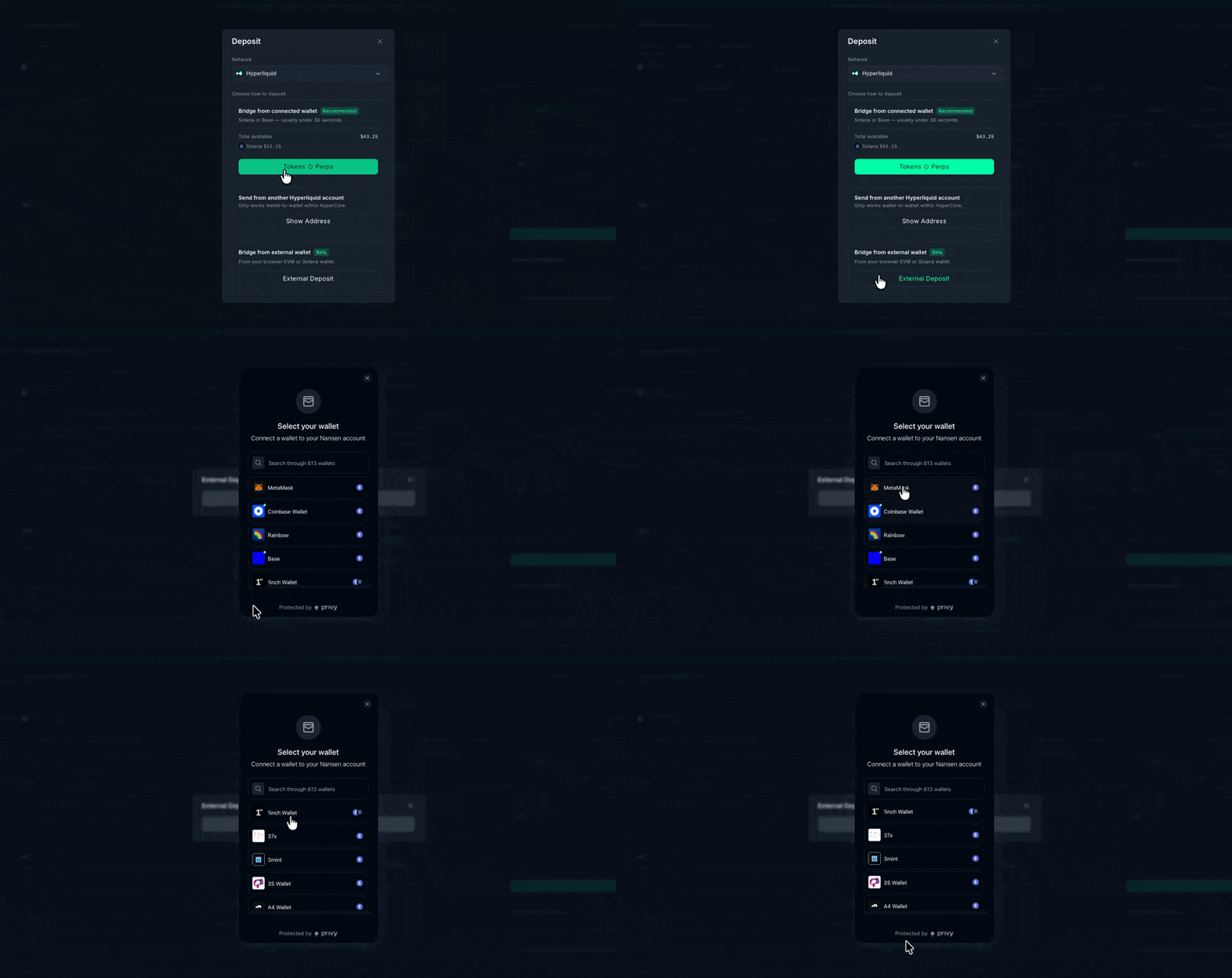
Bridge to Connected Wallet (Solana or Base)
1. Open the Nansen Wallet
2. Select Bridge from connected wallet - Solana or Base wallet
3. Enter the amount and confirm
4. Funds bridged to HyperLiquid - you're ready to trade
Send from another Hyperliquid account
If you have an existing Hyperliquid address within Hypercore, you can also send funds through that.
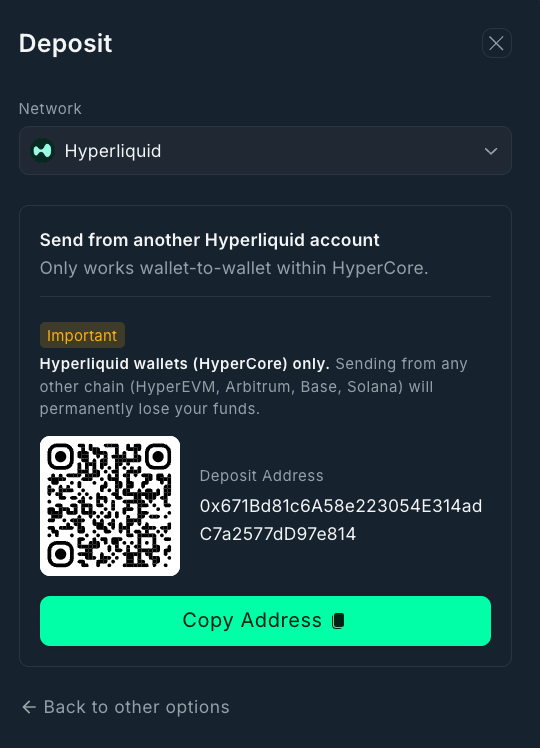
Click on Deposit at the top right corner
Select Send from another Hyperliquid account.
3️⃣ Navigate Perps on Nansen
You’ll notice some changes to the product. Spot trading still exists and can be toggled back to anytime between Token and Perps mode.
Perps on Token Screener
1. Go to the Token Screener
2. Click the switch toggle Perps next to Tokens
3. Everything available to trade via HyperLiquid perps will appear
Filter by Sector
You can also filter what shows up for perps, whether crypto or non-crypto assets.
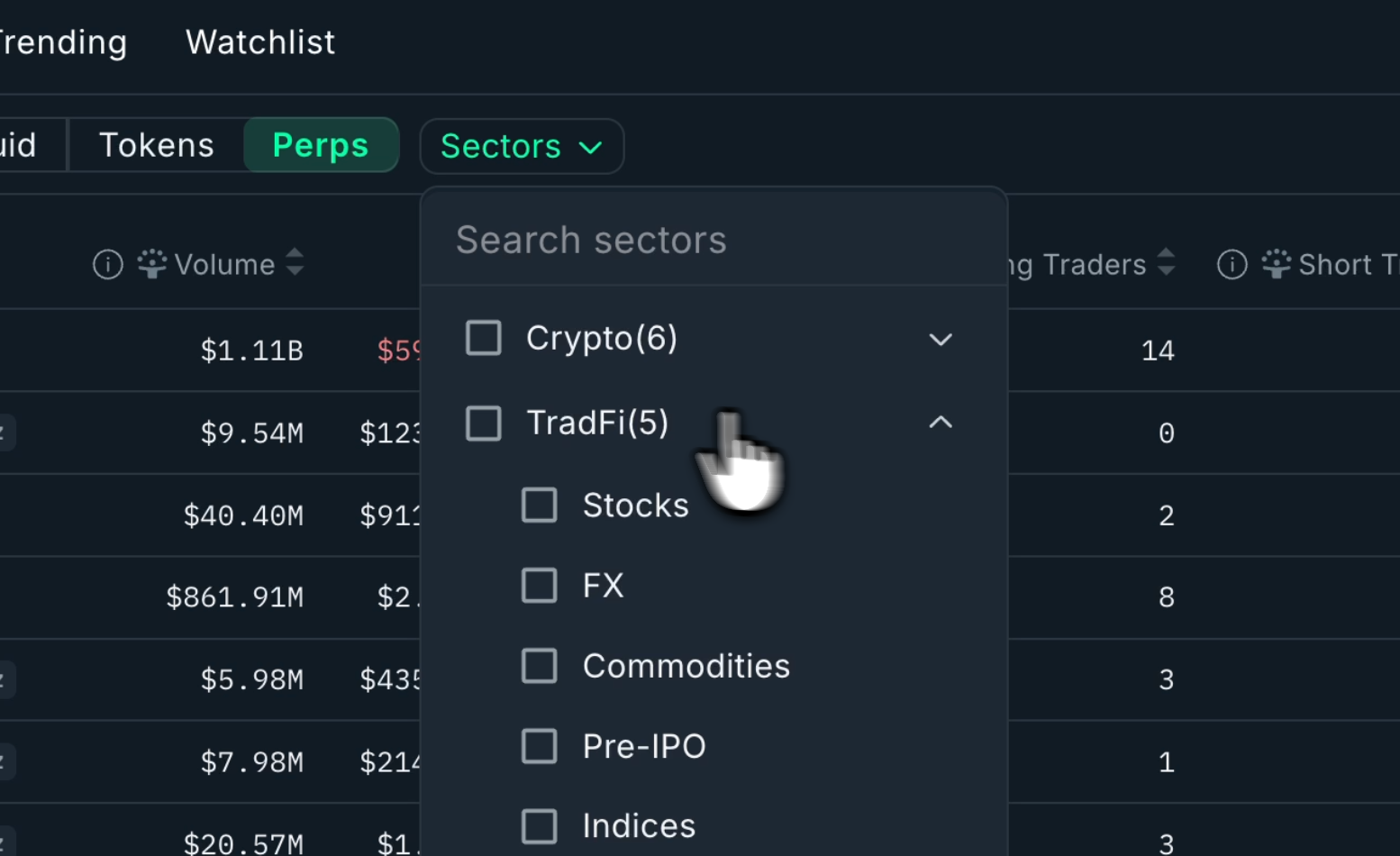
Open the Sectors dropdown
Choose Crypto or TradFi (stocks, commodities, and more)
Filter by Traders
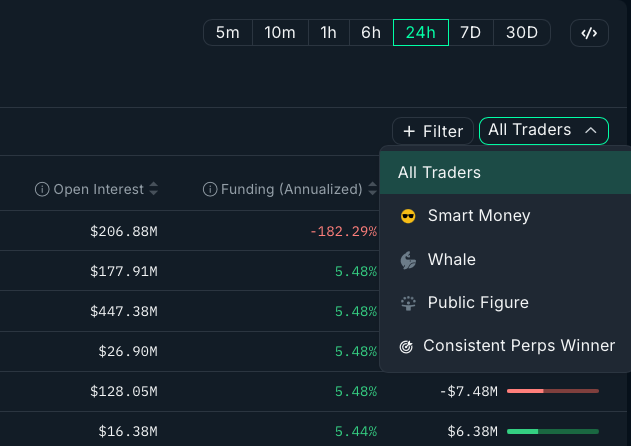
You can also filter by All Traders, Smart Money, Whales, Public Figures, and Consistent Perp Winners on the far right.
Perps on Token God Mode
1. Click into any token
2. On the right side, toggle between Token (Spot) and Perps
3. Select Perps - the interface updates to a full trading view:
• Live order book
• Live trades
• Long / Short controls
Portfolio Management
Nansen Portfolio allows you to track performance and manage your positions.
Portfolio Margin Mode
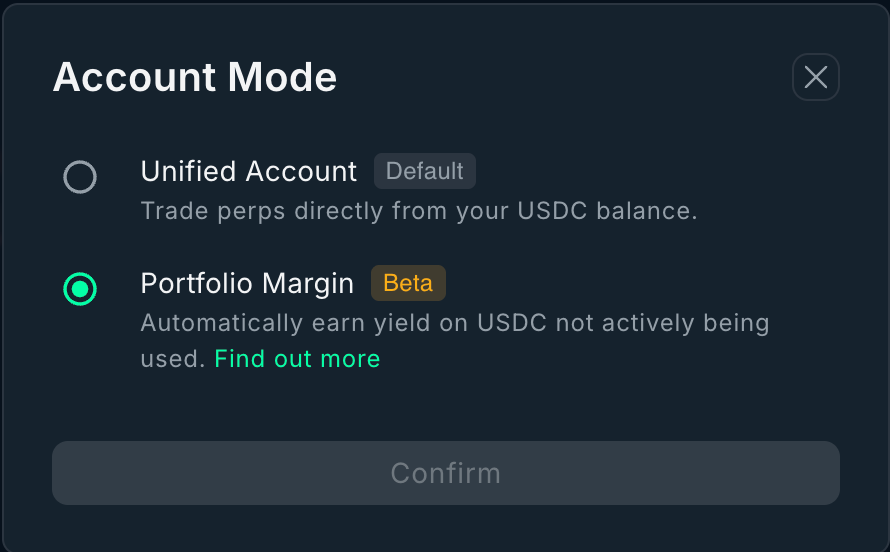
Portfolio Margin mode is now supported on Nansen for Hyperliquid perps.
Switch it on and your idle USDC automatically earns yield while you trade. Currently ~2% APY, available for accounts between $10K and $25M.
Where can I find Nansen settings for Portfolio Margin mode?
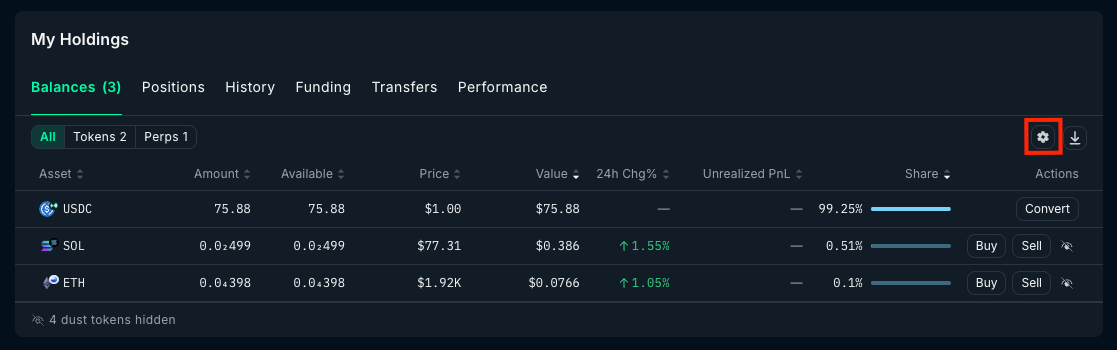
Go to Nansen Portfolio and click the balances tab. Look for the settings icon on the right hand side to toggle between two modes: Portfolio Margin and Unified Account.
Was this helpful?
Still need help? Share an idea